Configuration
This page covers the settings available under Configuration in the IssuePit UI.
API Keys
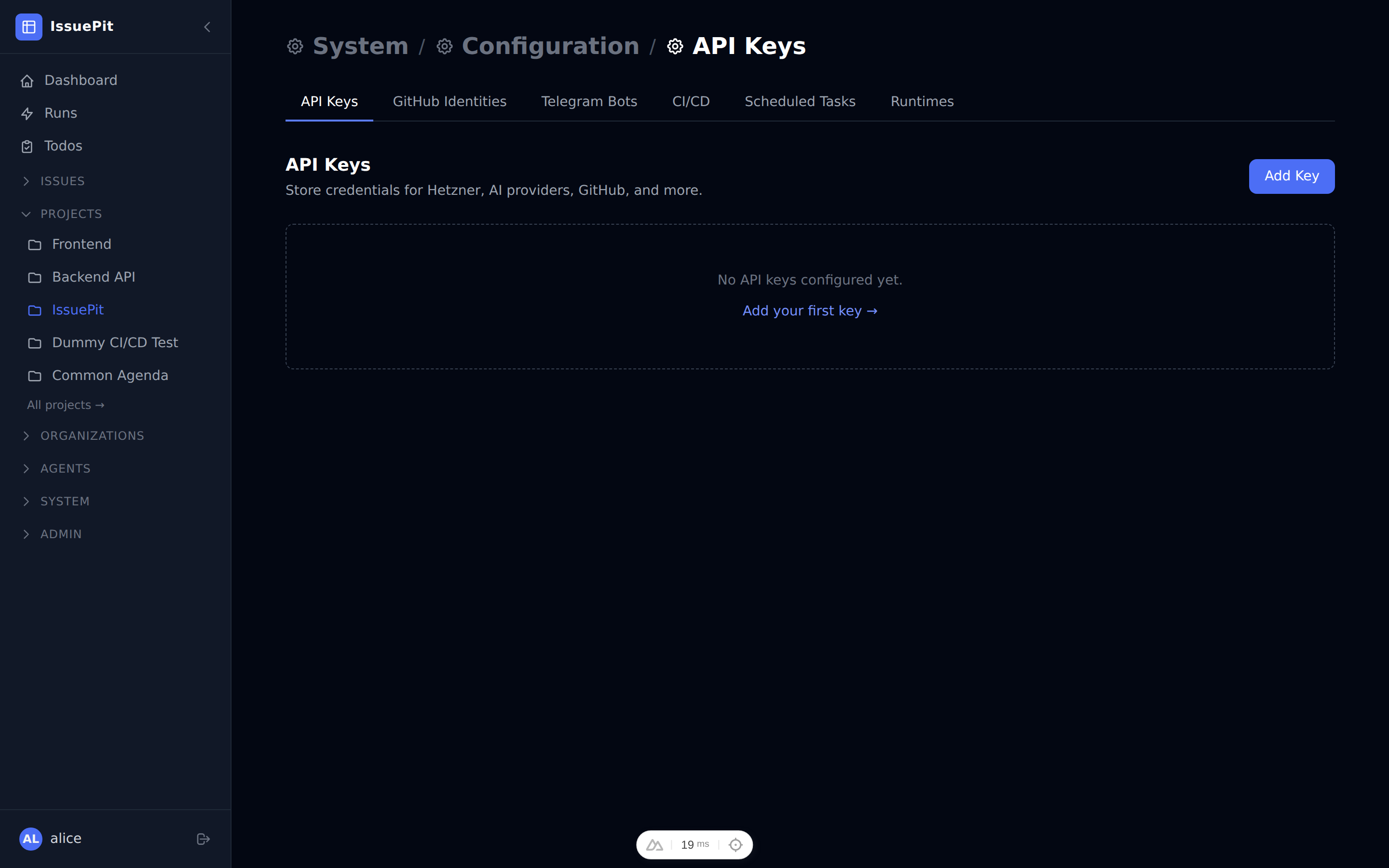
API keys let IssuePit authenticate with external services such as GitHub, AI providers, and cloud platforms.
- Go to Configuration → API Keys.
- Click Add Key.
-
Select the Provider:
Provider Used for GitHub Importing issues, creating branches/PRs GitLab Same as GitHub, but for GitLab Jira Importing issues from a Jira project (see Jira Sync) OpenAI AI agent completions (GPT-4, o3, etc.) Anthropic AI agent completions (Claude models) Azure OpenAI Azure-hosted OpenAI models Google Gemini models Hetzner Provisioning cloud VMs for agent runtimes - Enter the Key Value (the secret token from the provider).
- Click Save.
Tip: GitHub tokens need at minimum
reposcope to import issues and create branches.
Agent Runtimes
Agent runtimes define where and how agent containers are executed.
- Go to Configuration → Agent Runtimes.
- Click New Runtime.
- Choose the Type:
Docker/Podman— local container runtimeSSH— remote machine via SSHHetzner— auto-provisioned Hetzner VMOpenSandbox— sandbox environment
- Fill in the connection details (host, credentials, image registry, etc.).
- Click Save.
MCP Servers
MCP (Model Context Protocol) servers extend agents with external tools and data sources.
- Go to Configuration → MCP Servers.
- Click Add Server.
- Fill in:
- Name — display name (e.g.
GitHub MCP) - URL — the MCP server endpoint (e.g.
https://mcp.example.com) - Configuration — optional JSON configuration passed to the server
- Name — display name (e.g.
- Click Save.
After adding a server, you can link it to specific agents in the agent settings.
Telegram Bots
IssuePit can send notifications about issue events and agent run results to Telegram.
- Go to Configuration → Telegram Bots.
- Click Add Bot.
- Fill in:
- Name — display name for this bot configuration
- Bot Token — the token obtained from @BotFather
- Chat ID — the Telegram chat or channel ID where notifications are sent
- Optionally select which notification events to receive (issue assigned, agent failed, CI/CD failed, etc.) and set rate limiting or silent mode to reduce notification noise.
- Click Save.
Once configured, IssuePit dispatches notifications whenever the selected events occur.
Telegram Setup (Pairing)
The Telegram Setup wizard lets you link a Telegram chat or group directly to an IssuePit org or project. Paired chats support interactive bot commands (/newissue, /newtodo, voice messages) in addition to notifications.
Pairing flow
- Open Telegram, find your bot, and send
/startor/pair. - The bot replies with a 6-character pairing code (e.g.
ABCD34), valid for 15 minutes. - Go to Configuration → Telegram Setup in IssuePit.
- Enter the code in the Link a Chat form. Select a scope:
- Personal — linked to your user account
- Organization — linked to a specific org
- Project — linked to a specific project (enables
/newissuecommands)
- Paste your Bot Token and click Link Chat.
Bot commands (in paired chats)
| Command | Description |
|---|---|
/start or /pair | Generate a new pairing code |
/newissue <title> | Create an issue in the paired project |
/newtodo <title> | Create a to-do item |
| Voice message | Transcribe and create an issue (requires Vosk model) |
Managing paired chats
Go to Configuration → Telegram Setup to see all paired chats. Click Unpair to remove a chat from IssuePit.
Voice Input
IssuePit supports creating issues via voice using Vosk for offline speech recognition.
When voice input is enabled, a microphone icon appears on the issue creation form. Click it to start recording — spoken text is transcribed and inserted into the issue title and description fields automatically.
To enable voice recognition, the Vosk model must be available to the API service. Set the path via the Vosk__ModelPath environment variable in your docker-compose.yml:
environment:
  Vosk__ModelPath: /models/vosk-model-small-en-us-0.15
volumes:
  - ./models:/models:ro
Download a Vosk model from alphacephei.com/vosk/models and place it at the configured path.
Settings
The Settings page (gear icon at the bottom of the sidebar) shows:
- Backend API URL — the URL the frontend uses to reach the API. Set via the
NUXT_PUBLIC_API_BASEenvironment variable. - Appearance — theme picker (see below).
Themes
IssuePit ships with five built-in themes that can be selected on the Settings → Appearance page.
| Theme | Description |
|---|---|
| Dark | Classic dark theme (default) |
| Dim | Softer, cooler dark theme inspired by GitHub’s dim mode |
| Dark Accent | Dark background with a vibrant purple accent colour |
| Dark Square | Same dark palette but with sharp, square edges throughout the UI |
| Light | Light theme for bright environments |
Priority chain
The active theme is resolved in this order (highest priority first):
?theme=query-string parameter — e.g.https://app.example.com/?theme=light. Useful for screenshot automation and shareable links.- Browser-local override — stored in
localStorageunder the keyissuepit-theme. Applies only to the current device/browser without touching your profile. - Profile preference — saved to your account in the database. Applied on all devices where you log in.
- OS / system default —
prefers-color-schememedia query (light or dark).
Changing your theme
- Open Settings (gear icon in the sidebar).
- Under Appearance, click any theme card to preview and activate it.
- Toggle Save to profile to decide whether the choice is persisted to your account or kept as a browser-only override.
- To clear a browser override, click Clear override below the theme cards.